Getting Started
What CAMADA Playground is and how to start your first project.
What is CAMADA Playground?
CAMADA Playground is a design and project management platform for 3D Concrete Printing (3DCP). It provides a complete workflow from digital design to printable G-code — covering printpath generation, design management, and machine-specific code export.
The platform supports multiple ways to generate printpaths: slicing 3D models, extruding 2D floor plans, and creating geometry from parametric scripts. All generated designs converge into the same workspace, where they can be reviewed, edited, and exported as G-code for any major 3DCP printer.
Key Concepts
Design
A design is a printpath — a precise, ordered sequence of points that defines where and how your printer deposits material. Every tool in CAMADA Playground (Slicer 3D, Slicer 2D, Parametric Scripts) outputs a design. Regardless of how it was created, a design can be viewed as a 3D simulation, edited (name, description, transition point, view modes), and used to generate G-code.
G-code Setup
A G-code setup is a machine configuration profile that defines how G-code is formatted for your specific printer. It maps CAMADA's printpath data to the command syntax, coordinate conventions, and formatting requirements of your hardware. You create or select a G-code setup before exporting, ensuring that the output file is compatible with your printer.
G-code Result
A G-code result is the final exported file — generated by combining a design with a G-code setup. This file is ready to be sent directly to your printer for execution.
The core workflow: Create a design → select a G-code setup → export a G-code result.
The Library
After creating a CAMADA account, you land in the Library — your central dashboard. From here you can:
- Browse and manage all your designs.
- Access and configure G-code setups for your printers.
- View all generated G-code results.
- Perform price calculations.
- Initiate printing operations.
- Launch any of the design tools (Slicer 3D, Slicer 2D, Parametric Scripts).
The Library also includes a three-step guide to walk you through your first project.
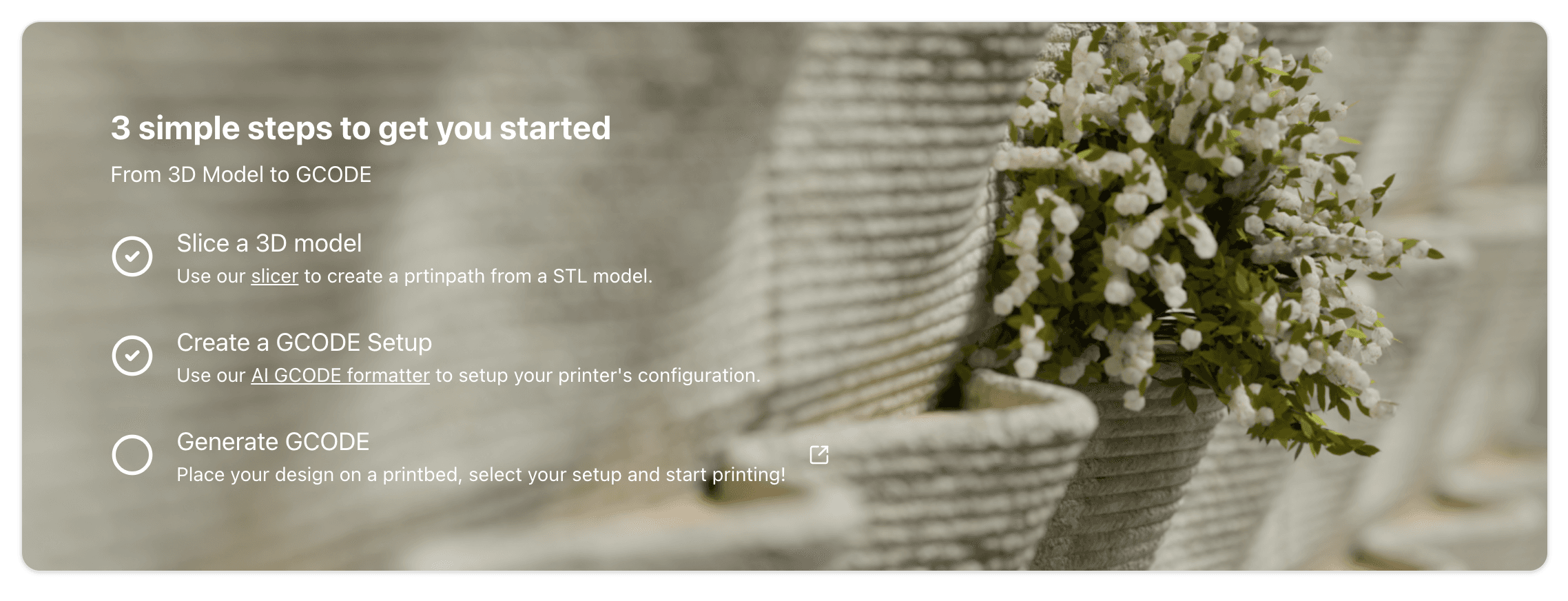
Each step of the guide will get checked as you complete the tasks.
Design Tools
CAMADA Playground offers three categories of design tools. Each serves a different starting point and use case.
Slicer 3D
Input: A 3D model (.stl or .3dm file).
The Slicer 3D takes a 3D mesh and computes horizontal cross-sections at a defined layer height to produce a printpath. It includes model analysis (geometry stats, dimensions, watertight check), overhang visualization, model rotation, and configurable contour transition modes. Best for users who already have a 3D model of the structure they want to print.
Slicer 2D
Input: A 2D drawing (.3dm or .pdf file with vector curves).
The Slicer 2D extracts vector curves from a file — typically a floor plan or wall profile — and extrudes them vertically across a defined number of layers. The user selects which curves to include and configures the layer height and count. Best for architects and engineers who have a 2D floor plan and want to convert it directly into a printpath.
Parametric Scripts
Input: None. Design is generated entirely from parameters.
Parametric scripts encode specific geometric logic and expose adjustable parameters that control the output shape. The user tweaks values, previews the result in real time, and saves the design when ready. No external files or CAD software required. Best for rapid exploration of geometric variations and for users who want to design directly within the platform.
Recommended First Project
If you are new to CAMADA Playground, we recommend starting with the Slicer 3D workflow — it is the most commonly used tool in 3DCP and covers the standard process of going from a 3D model to a printpath.
- Create a design. Open Slicer 3D, import an STL or Rhino file, configure your slicing parameters, and slice the model.
- Configure a G-code setup. Create or select a G-code setup that matches your printer's requirements.
- Export G-code. Combine your design with the G-code setup to generate a G-code file ready for printing.
Printer Compatibility
CAMADA Playground is compatible with all major 3D concrete printers in the industry. The G-code setup system allows you to define custom machine profiles, so the exported G-code matches your specific hardware regardless of manufacturer.